voice.ai®

Desktop voice workflows

A clearer voice changer for PC setup

A voice changer for PC can help you reshape spoken audio for streaming, video, games, and private drafts. Start with a simple source recording, choose the intended character, and review the result before sharing it.

Review before sharing
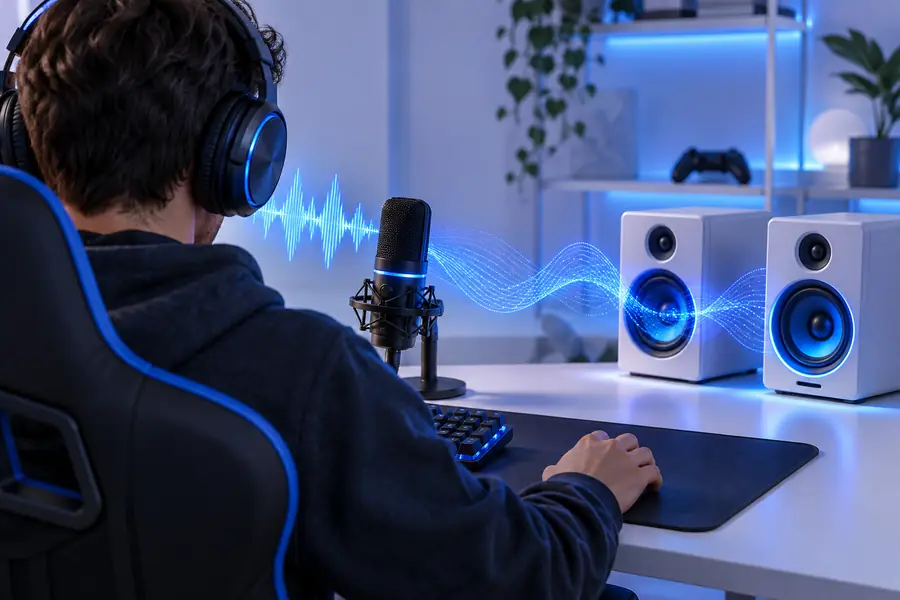
Voice Ai workspace for changing spoken audio on a PC

3 concrete workflows

Choose the workflow that matches the source material and the reason you need a changed voice. Keeping the goal narrow makes review easier and reduces unwanted artifacts.

Streamers

You have a live commentary style but want a distinct character voice for an intro, skit, or recurring segment.

Prepare a short spoken take, shape it toward the intended character, and compare it with your normal delivery before publishing.

online AI voice changer

Video creators

You need a consistent voice treatment across a few lines of narration without rebuilding the entire edit.

Work from clean clips, keep the wording unchanged, and replace only the selected narration after checking timing and intelligibility.

AI voice changer guide

Game and roleplay communities

You want a recognizable persona for a private session, character test, or clearly fictional performance.

Define the character in neutral terms, test a short sample, and label the result so listeners understand it is an altered performance.

AI deep voice generator

Accessibility and demo teams

You are testing how a spoken message sounds with a different vocal presentation on a desktop workflow.

Use non-sensitive sample content, compare several takes for clarity, and retain the version that communicates most naturally.

text to speech tools

Example output

A useful result is not simply more dramatic. It should preserve the words, remain understandable, and suit the context where listeners will hear it.

Prepare a clean source

Record or select a short clip with clear speech, limited background noise, and no private information you do not want processed.

Describe the intended character

State the creative direction in practical terms such as calm, bright, restrained, theatrical, or low-energy instead of naming a real person.

Review and refine

Listen for pronunciation, timing, unwanted artifacts, and whether the changed voice still fits the scene before exporting or sharing it.

Compliance notes

A PC workflow does not remove responsibility for consent, disclosure, or the rights attached to the source recording and final performance.

It should not impersonate a real person

Do not use a changed voice to mislead listeners into thinking a real individual said something they did not say.

WorkaroundUse fictional character directions or your own voice, and disclose that the performance has been altered when context could confuse people.

It cannot clear rights for source audio

A voice changer does not give you permission to process another person's recording, copyrighted dialogue, or confidential material.

WorkaroundUse recordings you own or have permission to use, and keep private source files out of experiments that do not require them.

It may not fix a poor recording

Heavy noise, clipping, overlapping speech, or unclear pronunciation can remain noticeable after a voice change.

WorkaroundRecord closer to the microphone, reduce background noise, and use shorter, cleaner takes.

It is not a substitute for final review

A transformed clip can sound acceptable in headphones but distracting in a full video, stream, or call mix.

WorkaroundCheck the result in the real playback context and ask a collaborator to flag confusing or misleading sections.

Review checkpoints

Use a small set of measurable checkpoints around each desktop session so the creative result is judged consistently rather than by novelty alone.

Clarity, timing, and context to review before sharing
3 checks
Source, direction, transformation, and final review in a repeatable workflow
4 stages
A voice treatment that serves the scene instead of distracting from it
1 goal

Make the next voice test

Bring a short, appropriate recording and a clear creative direction to Voice Ai. Start with a fictional or self-owned voice, review the output carefully, and keep the final use transparent when listeners could otherwise be misled.

  • Use a focused source clip
  • Describe the character, not a real person
  • Review before publishing

Scenario FAQ

These answers cover the practical questions people commonly ask when choosing a desktop voice-changing workflow.

A voice changer for PC is commonly used to alter spoken audio for streams, videos, games, roleplay, demonstrations, or private creative tests. The safest use is a clearly fictional or self-owned performance that you review before sharing.

A PC-oriented workflow is intended for use from a computer, including a laptop or desktop setup. Your actual experience depends on the route, browser, audio input, and the quality of the source recording.

Start with a short recording made in a quiet space and speak at a steady pace. Describe the desired character without referencing a real person, then check pronunciation, timing, background noise, and overall intelligibility.

Changing audio does not automatically give you permission to use another person's recording or impersonate them. Use source material you own or have permission to process, and avoid presenting an altered clip as an authentic statement from a real person.

Disclosure is important whenever listeners could reasonably mistake the result for a real person's unaltered speech or a genuine recording. For fictional entertainment, labeling the performance as altered keeps the context clear and helps avoid deception.

Try voice tools
Try voice tools